How to install an eSIM on Samsung and Android: step-by-step guideHow to install an eSIM on Samsung: step-by-step guide
Samsung Galaxy in detail, plus Google Pixel and other Android phones: one-tap button, QR code and manual entry, mobile data and roaming. Common errors and how to fix them.
Installing an eSIM on Android takes a couple of minutes. One rule matters most: the installation code works only once. If the installation is interrupted or you delete the eSIM, the same code won't bring it back. Below: Samsung Galaxy in detail, then Google Pixel and other Android phones, and at the end the common errors and how to fix them.
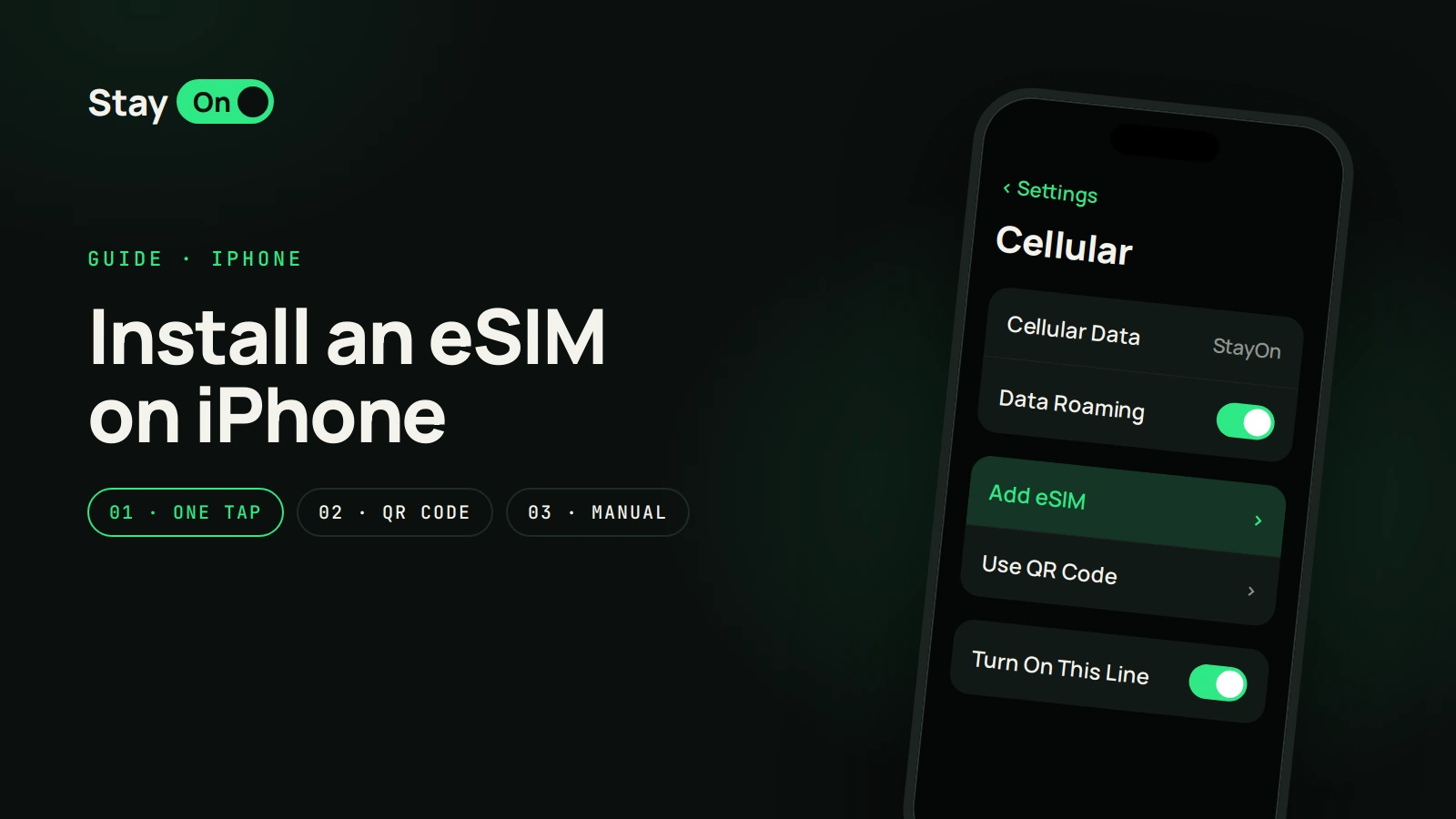
Got an iPhone? There's a separate guide for iPhone.
Before you start: a quick checklist
- Your phone supports eSIM. For Samsung that's Galaxy S20 and later, every Z Flip and Z Fold and some A-series models; for Google, every Pixel from Pixel 3 onwards. A lot depends on where the phone was sold: versions for China and Hong Kong often have no eSIM. Quick check: your SIM settings have an “Add eSIM” option. More in “Does my phone support eSIM” and on the compatible devices page.
- Your phone is unlocked. If you bought the phone from a carrier on a contract, ask them whether it's unlocked. A carrier-locked phone won't accept an eSIM from another provider.
- You're on Wi-Fi. The eSIM downloads over the internet, so you don't need a mobile signal for this. Home Wi-Fi is enough.
- Your eSIM email is at hand. It has the “Install on Android” button, the QR code and the details for manual entry. All of it is also on your order page: in your account, open the eSIM and tap “Install details”.
- Install it in advance, at home. The plan's validity starts on the first connection to a network in your destination, not at installation, so you can install the eSIM a few days before you fly. Install it before the date shown in your account (“Install by …”).
Samsung Galaxy
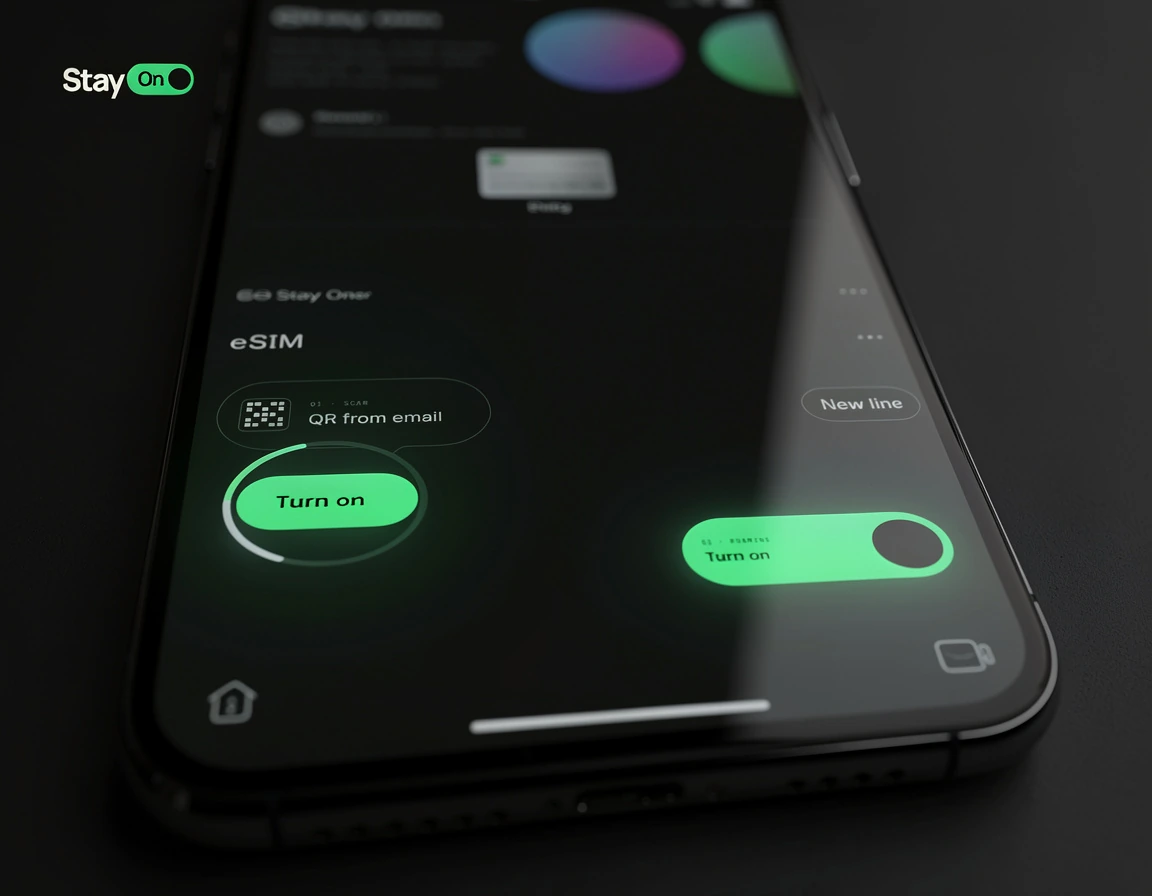
Option 1. The “Install on Android” button
The easiest way. It works on Android 10 and later with Google services and needs no second screen.
- Open the eSIM email on the phone you're installing it on. Or open the order in the StayOn app: Account → your eSIM → “Install details”.
- Tap “Install on Android”. The phone opens “Add eSIM” with the details already filled in.
- Confirm the download and wait for installation to finish. Don't close the window or turn off Wi-Fi until it's done.
If the button only opens the browser, install the eSIM with the QR code.
Option 2. QR code
You need a second screen: a computer, tablet or another phone.
- Open the eSIM email or your order page on the second screen.
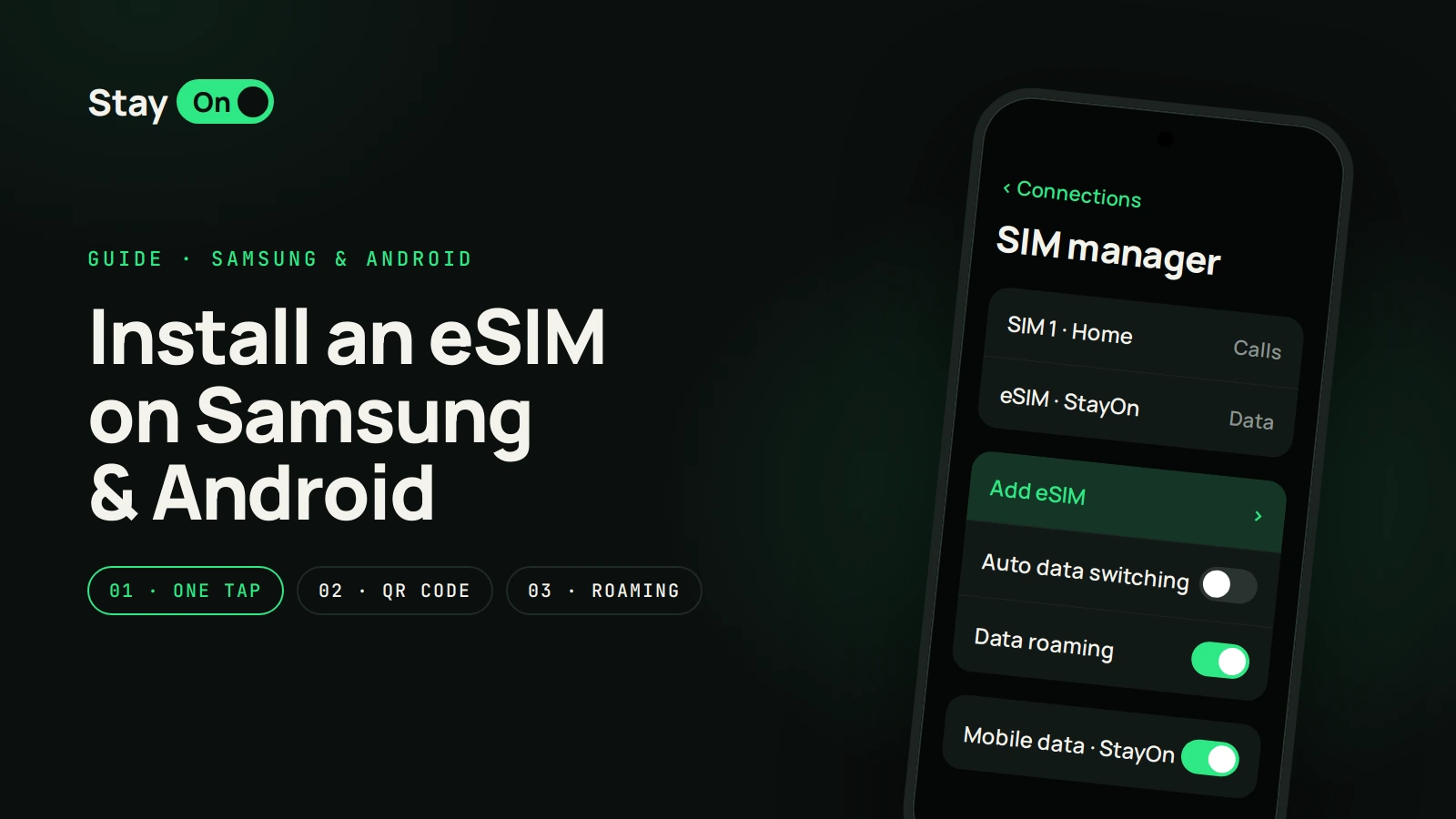
- On the Samsung go to Settings → Connections → SIM manager → Add eSIM.
- Choose “Scan QR code from service provider” and point the camera at the QR code.
- Confirm and wait for installation to finish.
Option 3. Enter the code manually
Use this if the QR code won't scan and you have no second screen.
- On the scanning screen tap “Enter activation code”.
- Copy the Full string for Android from the email or your order page (it starts with LPA:1$) and paste it whole into the activation code field. If the phone asks for the SM-DP+ address and the code separately, paste each into its own field.
- Confirm and wait for installation to finish.
Setting up after installation on Samsung
- Label the line, for example “StayOn”, and turn it on.
- Mobile data. SIM manager → “Mobile data” → choose StayOn. Keep calls and texts on your usual SIM.
- Auto data switching. If SIM manager has an “Auto data switching” toggle, turn it off. Otherwise the phone may switch back to your home SIM and your carrier may charge you for roaming.
- Data roaming. When you land, open Settings → Connections → Mobile networks and turn on “Data roaming”.
If there's no “Add eSIM” option at all, the model or its regional version most likely doesn't support eSIM.
Google Pixel
- Go to Settings → Network & internet → SIMs → Add SIM.
- When the phone asks you to insert a physical SIM, tap “Download a SIM instead?”.
- Scan the QR code. If you only have the details, tap “Need help?” → “Enter it manually” and paste the Full string for Android from the email.
- After installation open the StayOn line under “SIMs”: turn it on, along with “Mobile data” and “Roaming”.
The “Install on Android” button from the email works on Pixel the same way as on Samsung.
Other Android phones
On Xiaomi, OnePlus, OPPO, Honor and others the path is similar: Settings → SIM cards (or Mobile network) → eSIM → Add. The exact names depend on the phone's software. After installation, choose StayOn for mobile data and turn on data roaming for that line in the same way. If there's no eSIM section, check your model on the compatible devices page.
When you land
- Turn off airplane mode.
- Make sure the StayOn line is on, selected for mobile data, and has data roaming on.
- Give the phone one to three minutes to find a network. No internet? Toggle airplane mode on and off or restart the phone.
Data roaming must be on for the StayOn line: for a travel eSIM the local network is technically a foreign one. Your carrier won't charge you for it, the data comes from your StayOn plan. It's best to turn data roaming off on your home SIM.
If your plan also covers the country you live in (a Europe-wide plan, for example), turn the StayOn line on only when you travel. Otherwise it connects at home and the plan's validity starts early.
Common Android errors
“Code no longer valid” or “Couldn't download eSIM”
The code has already been used. Check SIM manager: quite often the eSIM actually installed on the first try. If there's no new line, the installation was interrupted or the eSIM was deleted. The same code can't restore it, so message us your order number and we'll sort it out.
There's no “Add eSIM” option
The model or its regional version doesn't support eSIM, or the phone is carrier-locked. Check your model in “Does my phone support eSIM”.
The eSIM download is stuck
Check your Wi-Fi and wait a few minutes. Don't delete the eSIM and don't enter the code again. If nothing changes after 10 minutes, restart the phone and send us a screenshot.
The “Install on Android” button only opens the browser
The link works on Android 10 and later with Google services. If your phone doesn't recognise it, install the eSIM with the QR code or manually.
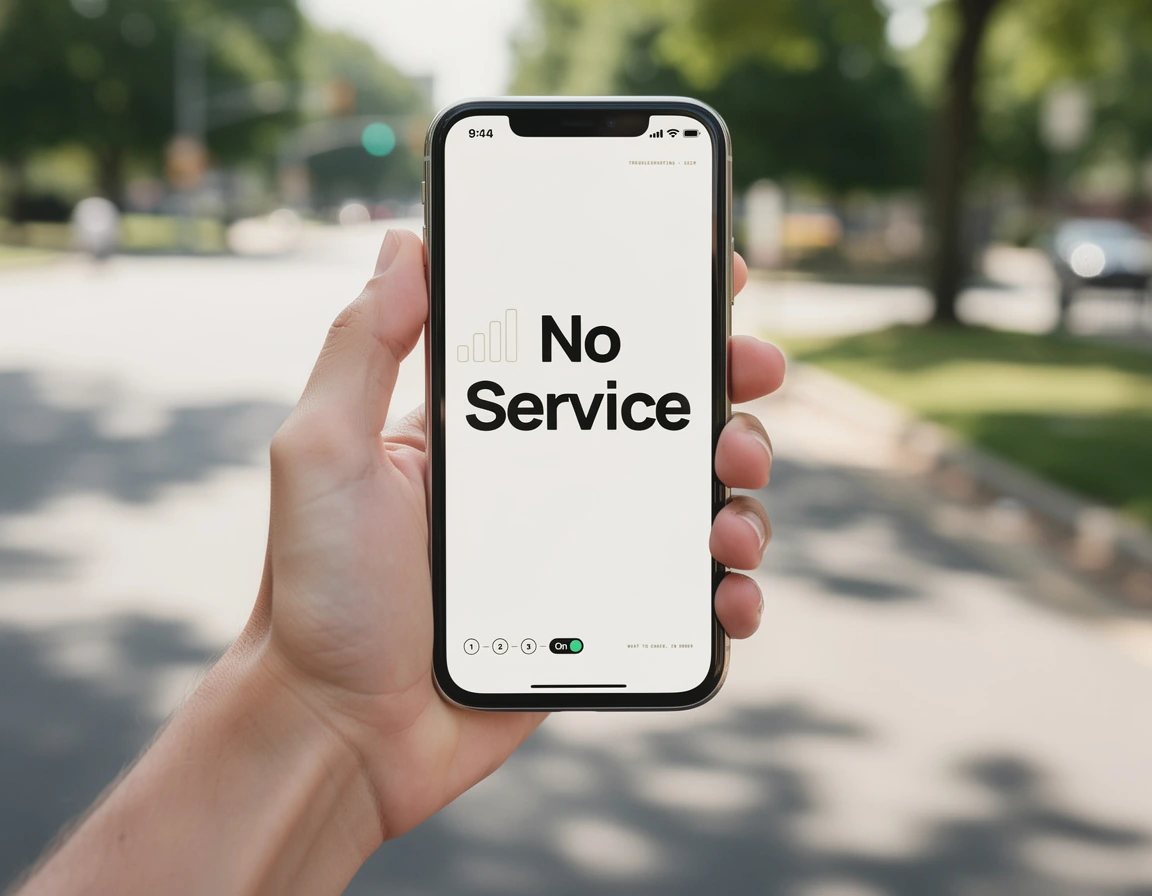
The eSIM is installed but there's no internet
The wrong SIM is selected for mobile data, data roaming is off on the StayOn line, or you're not in the plan's country yet (the eSIM only connects where the plan works). Airplane mode for ten seconds and automatic network selection in your mobile network settings often help. You usually don't need to set up an APN by hand. The full checklist is in “eSIM not connecting”.
There are two StayOn lines on my phone
This happens if you've bought an eSIM before. Turn on and select for data the line from your current order; you can turn the old one off. Only delete it if you're sure its plan has ended.
I deleted the eSIM
A deleted eSIM can't be reinstalled with the same code. Send us your order number and we'll see what we can do.
FAQ
Do I need to turn on data roaming?
Yes, data roaming must be on for the StayOn line. Your carrier won't charge you for it: the data comes from your StayOn plan. It's best to turn data roaming off on your home SIM.
Will I keep my number?
Yes. Your usual SIM stays in the phone, calls and texts reach it as normal, and data goes through StayOn.
Can I install the eSIM without a second device?
Yes: with the “Install on Android” button (Android 10 and later) or by entering the activation code manually.
When does the plan start?
On the first connection to a network in your destination, not at purchase and not at installation. So it's safe to install the eSIM at home in advance.
Can I move the eSIM to another phone?
No, an eSIM is tied to one phone. If you've changed phones before your trip, message us before installing.
What if nothing helped?
Contact support or email hello@getstayon.com with your order number and a screenshot of the error. If the eSIM never works, we'll refund you.
Key points
- Install the eSIM in advance, on Wi-Fi, and switch it on when you land.
- The code works once: don't interrupt installation and don't delete the eSIM.
- Choose StayOn for mobile data and turn on data roaming for that line.
- If something goes wrong, don't keep retrying. Send us a screenshot.
Popular destinations with StayOn: Turkey, Georgia, UAE, Cyprus. All installation guides are on the “How to install an eSIM” page.